EMME, Explained
A short manual for finding a fair place to meet while keeping everyone's exact starting point out of the shared plan.
I'm overwhelmed by the number of visits and the engagement EMME has received. I believe technology should be so user-friendly and so easy to understand that you don't need a manual. It seems that isn't the case here, so I want to make it a little easier to understand what EMME is and how it works.
EMME was born out of empathy for others. When someone plans to go out of their way to meet you, they give up time, gas money or a transit fare, and sometimes a bit of privacy about where they live or work. EMME stands for Equal Minutes, Mutual Effort, and it exists to make that effort fair and visible to both of you. To get the most out of it, it's important that you understand three things: the privacy features, the collaborative features, and the features that make it work.
What EMME does
You and the people you're meeting start in different places. EMME finds an area where the travel is shared fairly, then lists real places nearby that fit the kind of meetup you have in mind. When you share the plan, each person appears as a broader area, such as "Near Old Town." Street addresses stay out of the shared plan.
The screenshots on this page use an example plan. The people and places in them are made up.
Plan a meetup in three steps
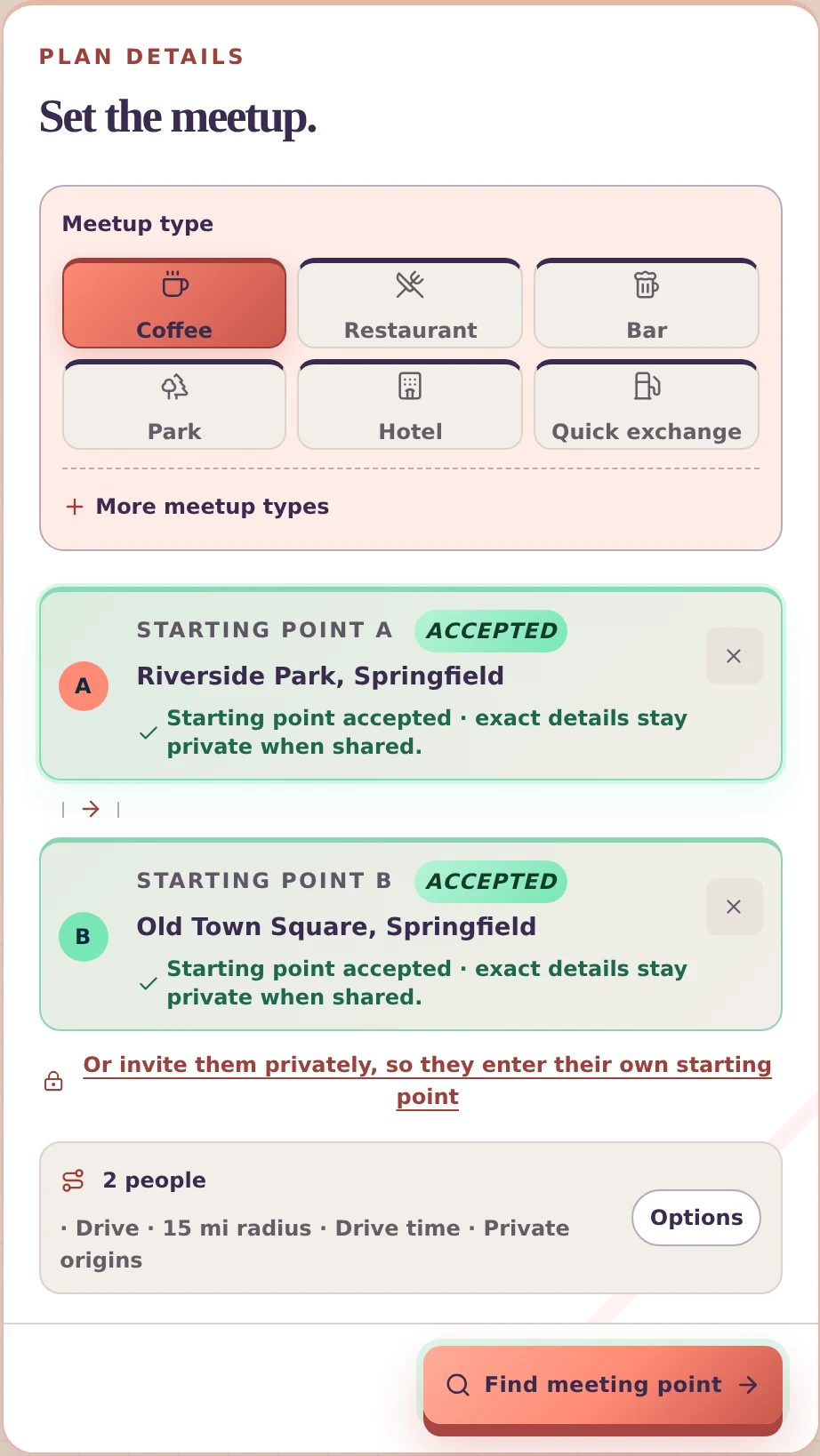
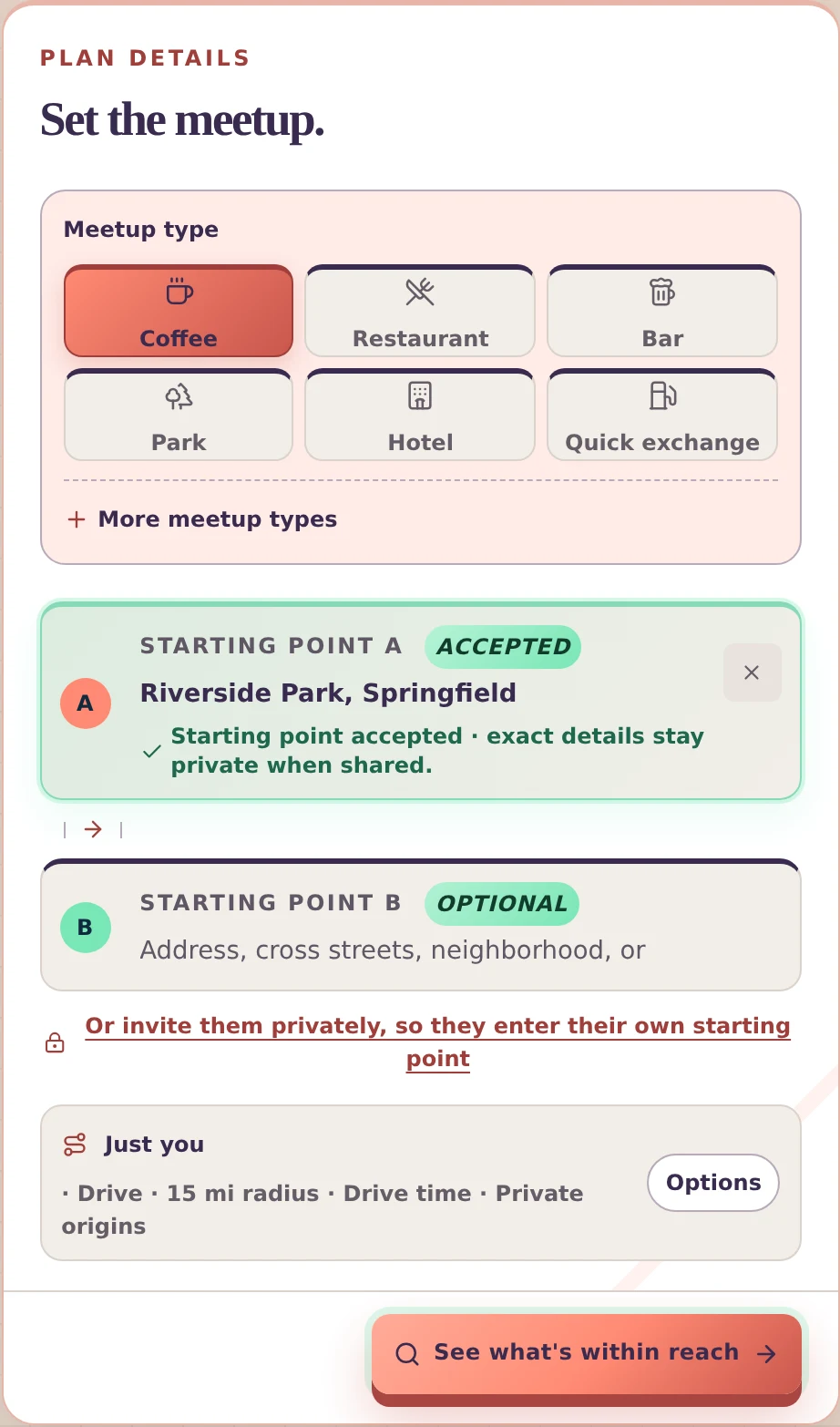
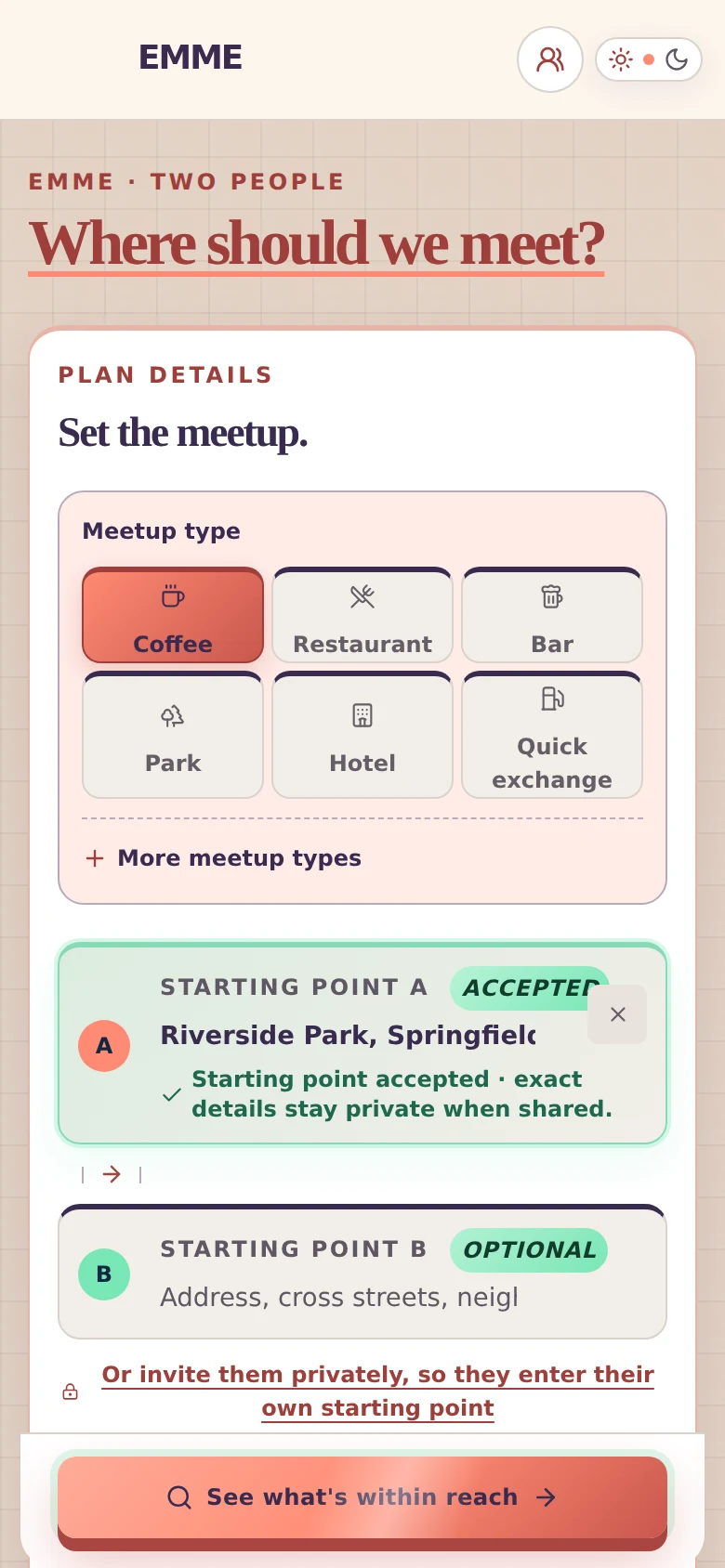
- Pick the meetup type. Coffee, Restaurant, Bar, Park, Hotel and Quick exchange sit on the first rows. More meetup types adds Business, School, Kids activities, Golf, Pickleball, Tennis, Retail, Nightlife and Fitness. The type decides which places EMME looks for.
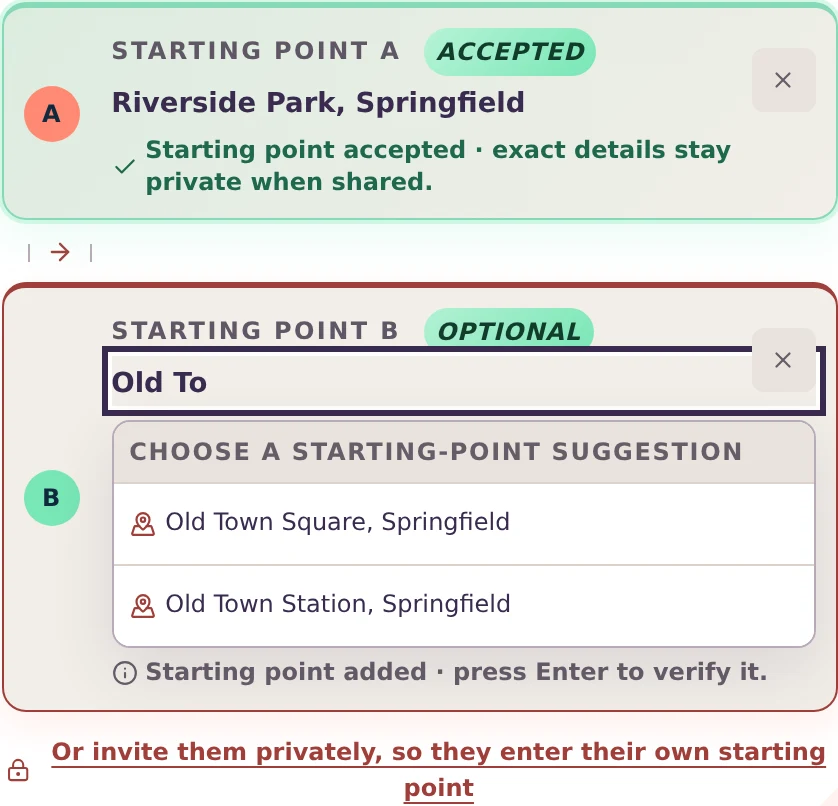
- Add your starting points. Type an address, cross streets, a neighborhood or a city. Choose a suggestion or press Enter, and an Accepted badge confirms EMME found the location. Starting point B is optional, and I'll come back to that.
- Press Find meeting point. The map draws the route and the meeting area, and the list shows the places closest to that area first. You can re-sort by Recommended, Highest rated, Most reviewed, Open now or Lowest relative price.
How the meeting area is chosen
By default EMME measures driving time along the actual road route and places the meeting area where each of you spends about the same number of minutes. When two people are driving, walking or biking, EMME also looks for a shared travel-time zone, an area both of you can reach within the same time limit, and puts the places inside it first when it finds one. With three or more people, EMME uses a shared center and shows each person's trip to it.
Under the map, the travel comparison shows each person's estimated trip and the widest gap between them, so you can judge the result for yourself.
Just you: see what's within reach
Sometimes you only want to know what's near you. Leave starting point B empty and the button changes to See what's within reach. EMME centers the search on your starting point, draws your search distance on the map and lists the closest places. Add a second starting point whenever you like and EMME goes back to finding a meeting point.
Fine-tune with Options
The Options button opens four tabs. Nothing in them is required.
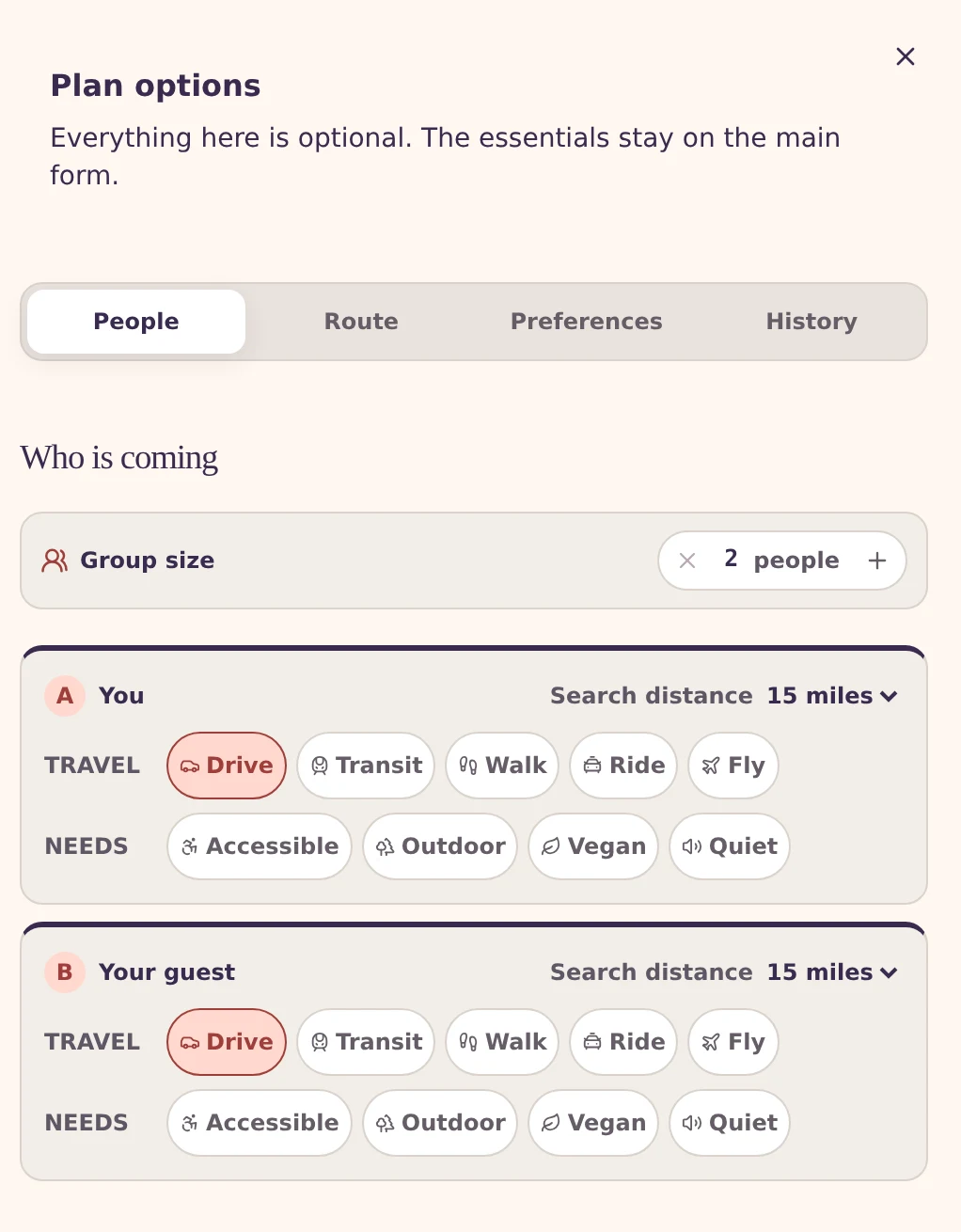
- People. Set the group size, each person's travel mode (Drive, Transit, Walk, Ride or Fly), a search distance from 1 to 50 miles, and needs such as Accessible, Outdoor, Vegan, Kids or Quiet. The shortest search distance in the group sets the search radius for everyone, and needs are added to the venue search.
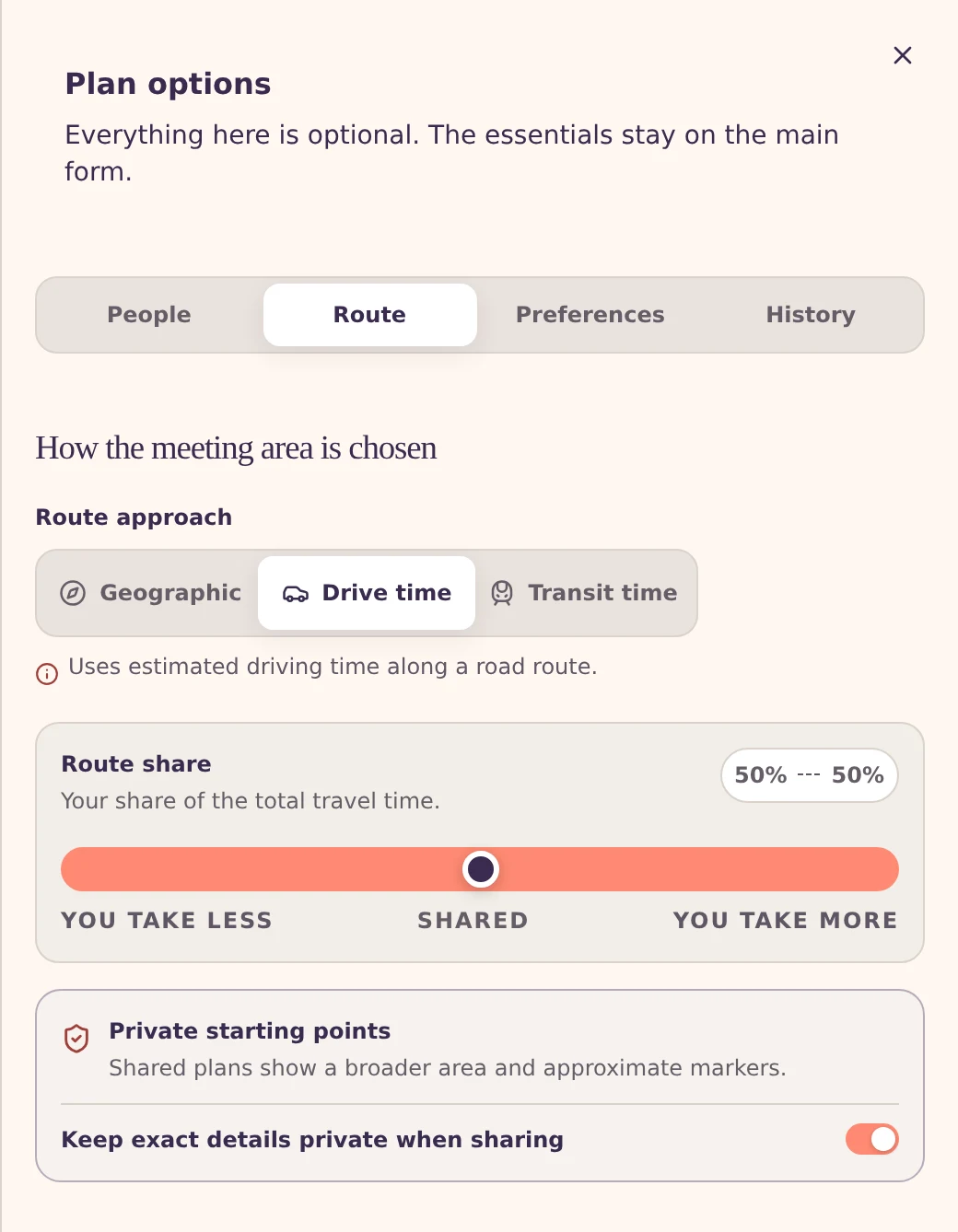
- Route. Choose Geographic, Drive time or Transit time. The Route share slider lets one person take on more of the trip, which helps when one of you has a car and the other doesn't. The Private starting points switch keeps exact details out of shared plans, and it's on by default.
- Preferences. Set a price cap, a minimum rating and parking. Compare a specific place shows each person's trip to a spot you already have in mind. You can also name the plan and set a time.
- History. Recent searches, favorite areas and saved groups. These stay in your own browser, and saved groups keep names only.
Privacy: what other people see
This is the part I care about most, so here is exactly what happens to a starting point.
- To calculate the route, EMME uses the exact location you enter. It goes to EMME's server and to Google Maps, which does the routing, through a maps proxy run by EMME's hosting platform.
- In a shared plan, each person appears by name with a broader area label such as "Near Riverside," and their map marker is rounded to roughly a kilometer.
- The other people in the plan do not see the street address.
- Your recent searches, favorite areas and saved groups stay in your own browser.
To be precise about the limits: the exact location still passes through EMME's server, the maps proxy and Google Maps, because that is how a route gets calculated. The protection is from the other people in the plan.
Invite someone privately
If you don't know someone's address, or it isn't your place to ask, don't type it for them. Choose Or invite them privately under starting point B. EMME creates a one-person link that you send however you like. The person opens it, enters their own starting point on a private screen and joins without an account. Their address is stored encrypted and left out of everything the shared plan shows, including what you see as the host. You see their broader area and the travel results.
Each link works once, expires after the time you choose (from 24 hours to 30 days), and can be revoked until it's used.
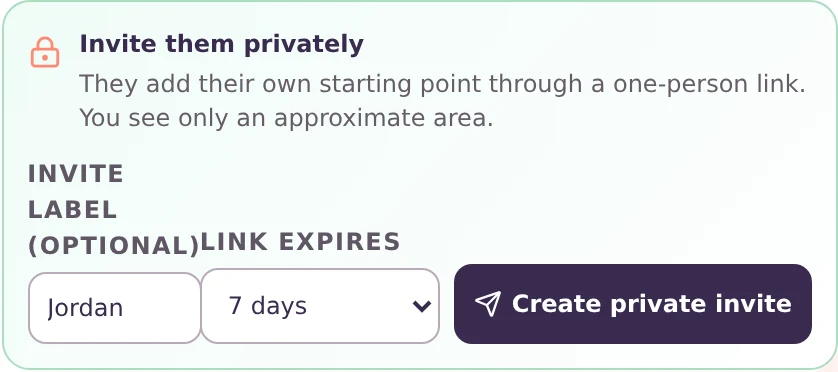
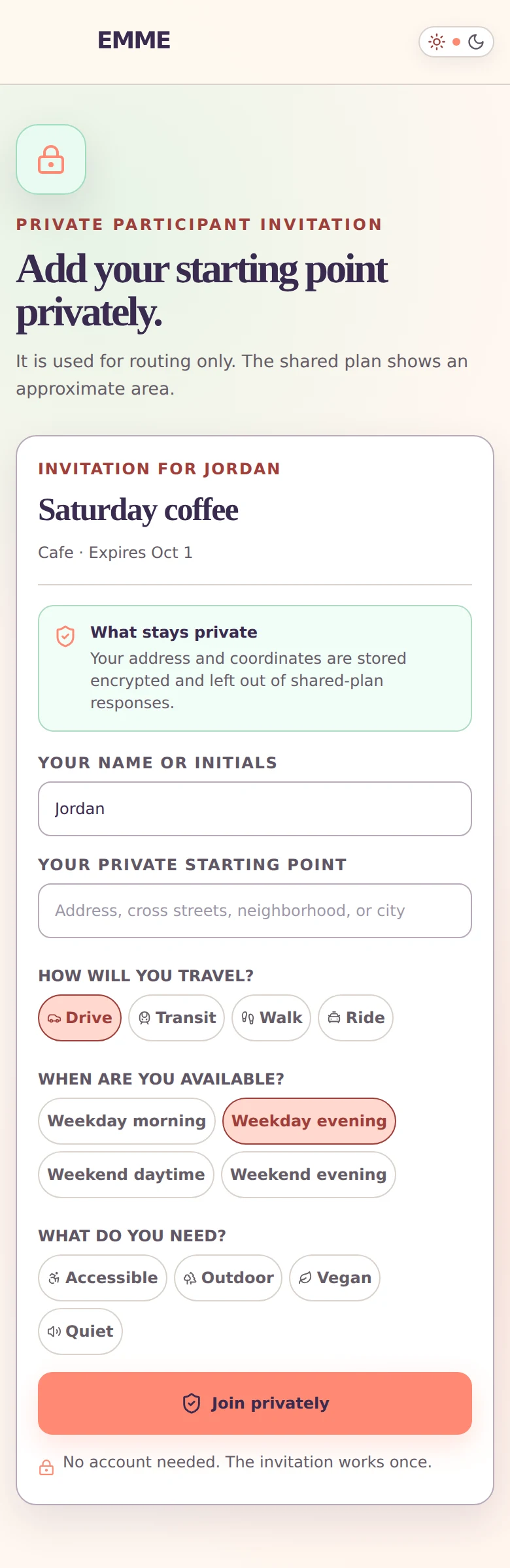
Saving a plan or creating a private invitation asks you to sign in, so you can come back to the plan later. The people you invite don't need an account.
Plan together
Save plan turns your search into a link you can send. Here's what happens after that.
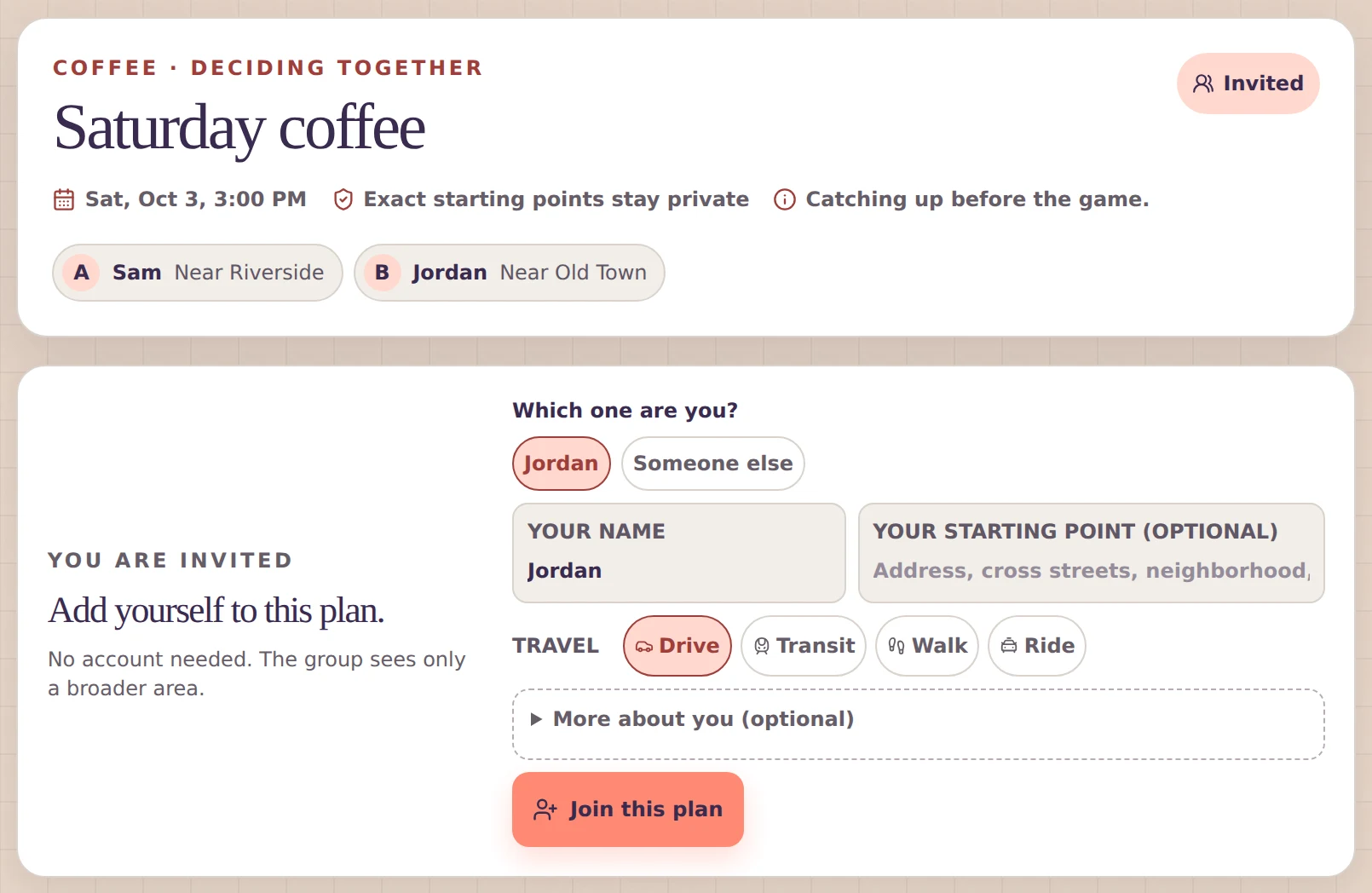
Guests join without an account. They see the plan, pick their name under "Which one are you?", choose how they'll travel, and can add their own starting point.
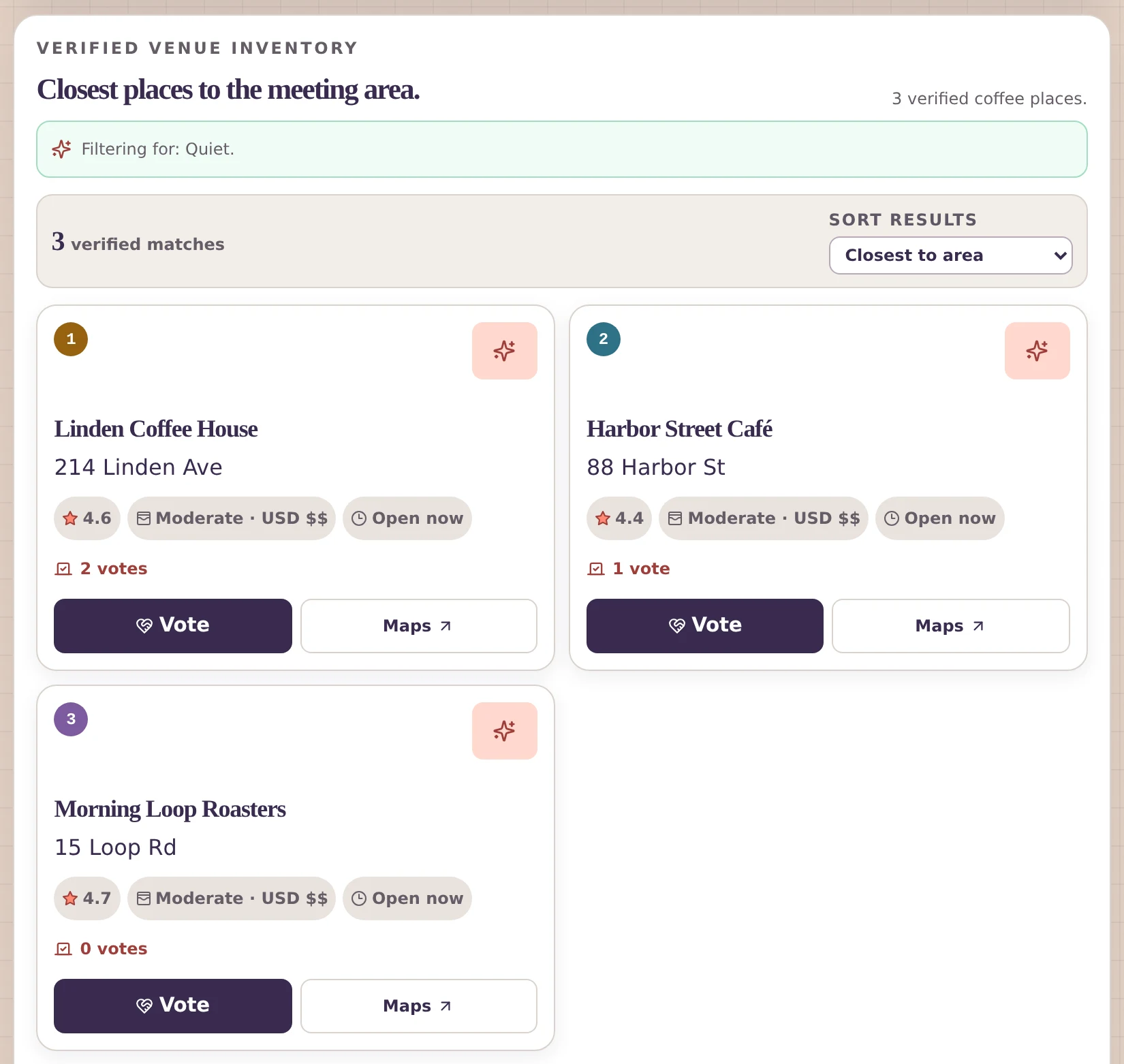
Everyone votes. Each place has a Vote button, and pressing it again takes your vote back.
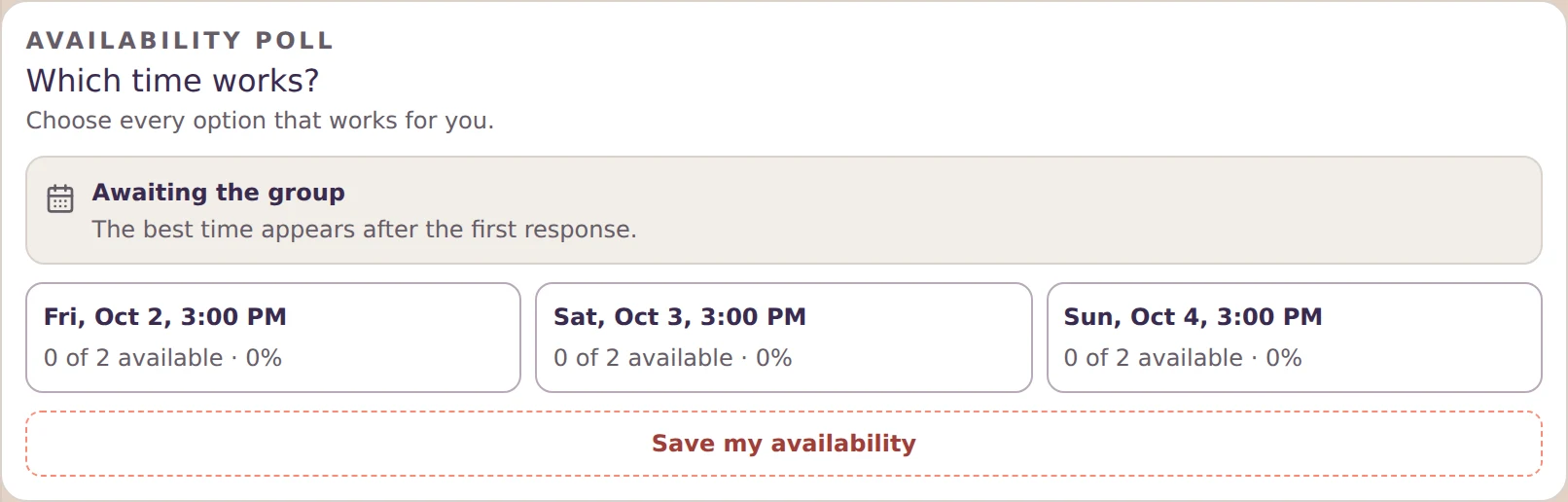
Pick a time. The availability poll offers the planned time plus the day before and the day after. Choose each time that works for you, and EMME highlights the best shared time.
The host stays in charge. The host can edit the inputs, invite someone privately, share the plan, reset it, or hand planning to someone else with a handoff link. A handoff link gives the person the same control you have, so send it only to someone you trust.
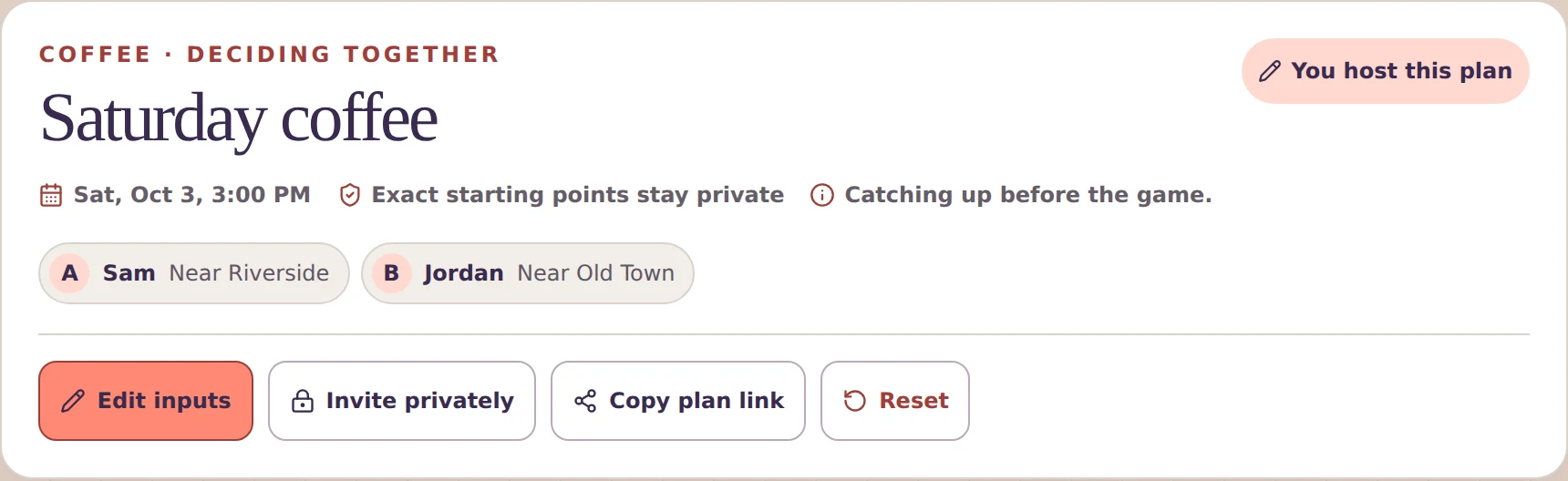
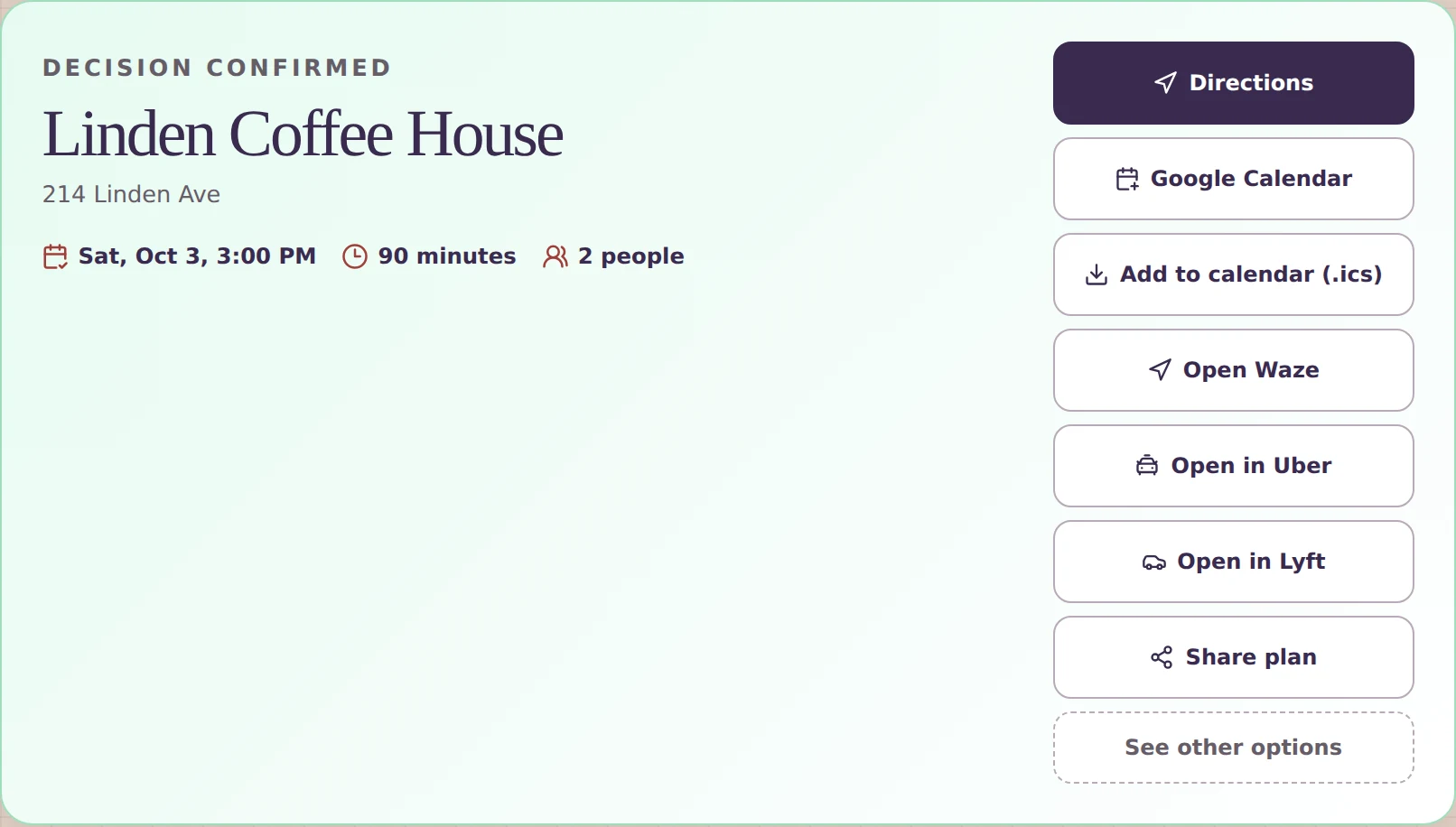
Confirm the place. When the host confirms a place, the plan becomes a decision card with directions, calendar buttons, navigation and ride apps, and a share button. Guests can open See other options to look back at the list.
On your phone
EMME runs in your phone's browser with the same features. The Find meeting point button stays pinned to the bottom of the screen while you fill in the plan. EMME also works with a keyboard and a screen reader, and it respects your device's reduced-motion setting.
Tell me where you got stuck
If a screen in EMME made you pause and wonder what to do next, I want to hear about it. Send a note through the contact page or write to help@tryemme.com with the screen and what you expected, and plan your next meetup at tryemme.com.